MacOS Screenshot - OCR & LaTeX Model
Brief Overview of Features
Screenshot Capture
- Capture screenshots of selected screen areas
- Save them as temporary files
OCR Engine: Pytesseract
- Extract text from the captured temporary screenshots
- Uses Pytesseract
LaTeX Engine: Modified Pix2tex
- Extract LaTeX code from the captured temporary screenshots
- Based on LaTeX-OCR (modified pix2tex)
Clipboard Management
- Append the recognized text or LaTeX code to the clipboard in an orderly manner
- Easy-clear button for the clipboard content
User Interface
- Lightweight, easy-to-use interface with tkinter
Motivation
This is a fairly self-tailored Python program that was developed after I hit an eventual fever pitch in dealing with terribly formatted PDFs. Specifically, I was attempting to take specific class readings/scans and convert them to a plain text format/file so that they could then be embedded and used within a course-specific knowledge retrieval chatbot. However, despite these readings having clearly human-readable text, it was not able to be copied digitally in any useable manner.
Basic Copy-Paste Example
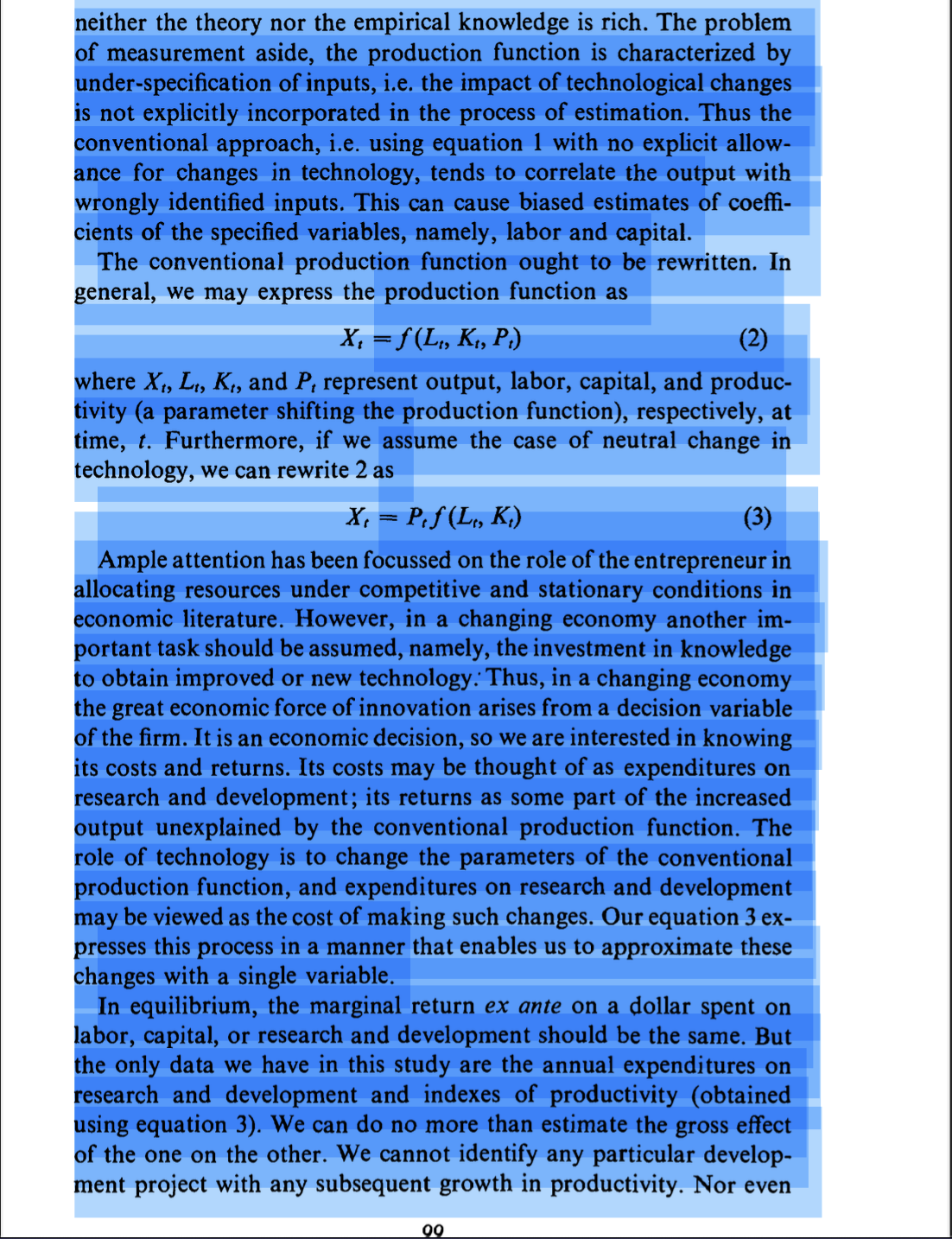
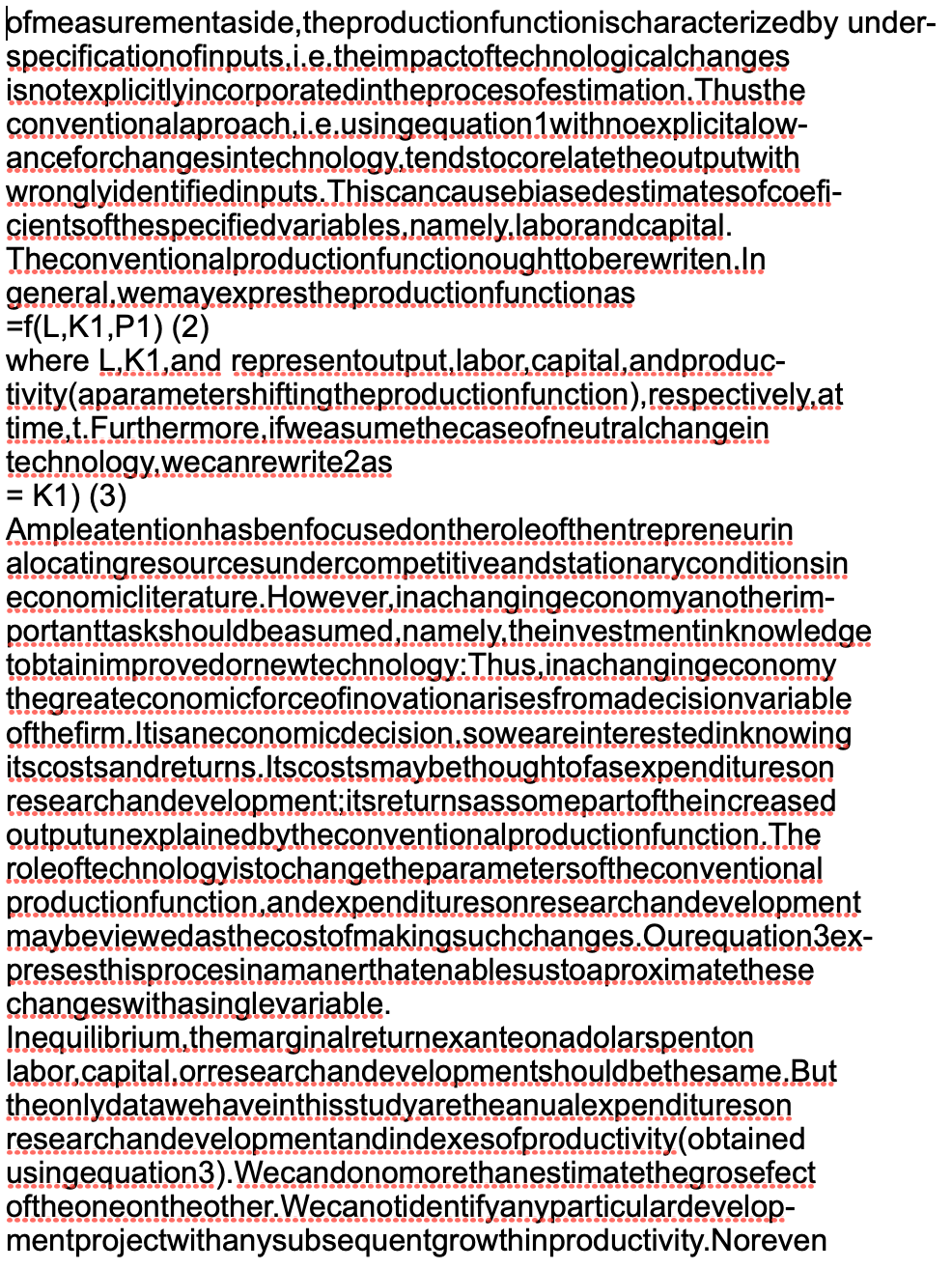
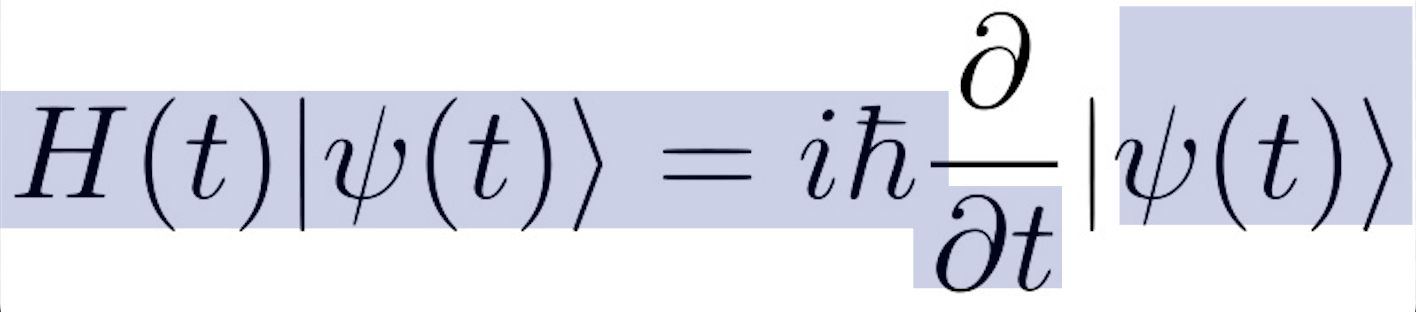
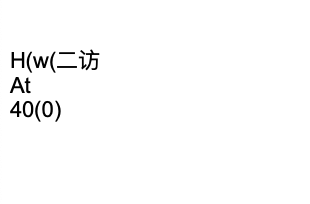
Below is a visual example of one such shameful attempt to copy the text of an assigned reading. The image on the left is the text I attempted to highlight in order to copy and paste, and the image on the right shows the results.
 |  |
To address these issues, I attempted to use Optical Character Recognition (OCR) technology. OCR is a widely used technique that employs machine learning and pattern recognition to extract textual data from PDFs or similar file formats. It recognizes characters and translates them into machine-encoded text, which, in theory, should be an ideal solution for extracting text from academic PDFs.
However, due to the large volume and substantial length of these academic PDFs, implementing an automated OCR process that retains the original formatting and minimizes content loss has been challenging. This is primarily because academic PDFs contain various textual and visual elements that may interfere with the process of OCR.
OCR Text Extraction Issues - Example #1
The following image displays an example page where text needs to be extracted. The red box highlights areas that should be ignored during the text extraction process, such as numeric data in tables or graphs, and footnotes. Avoiding these elements ensures smooth readability and maintains the flow of the text.
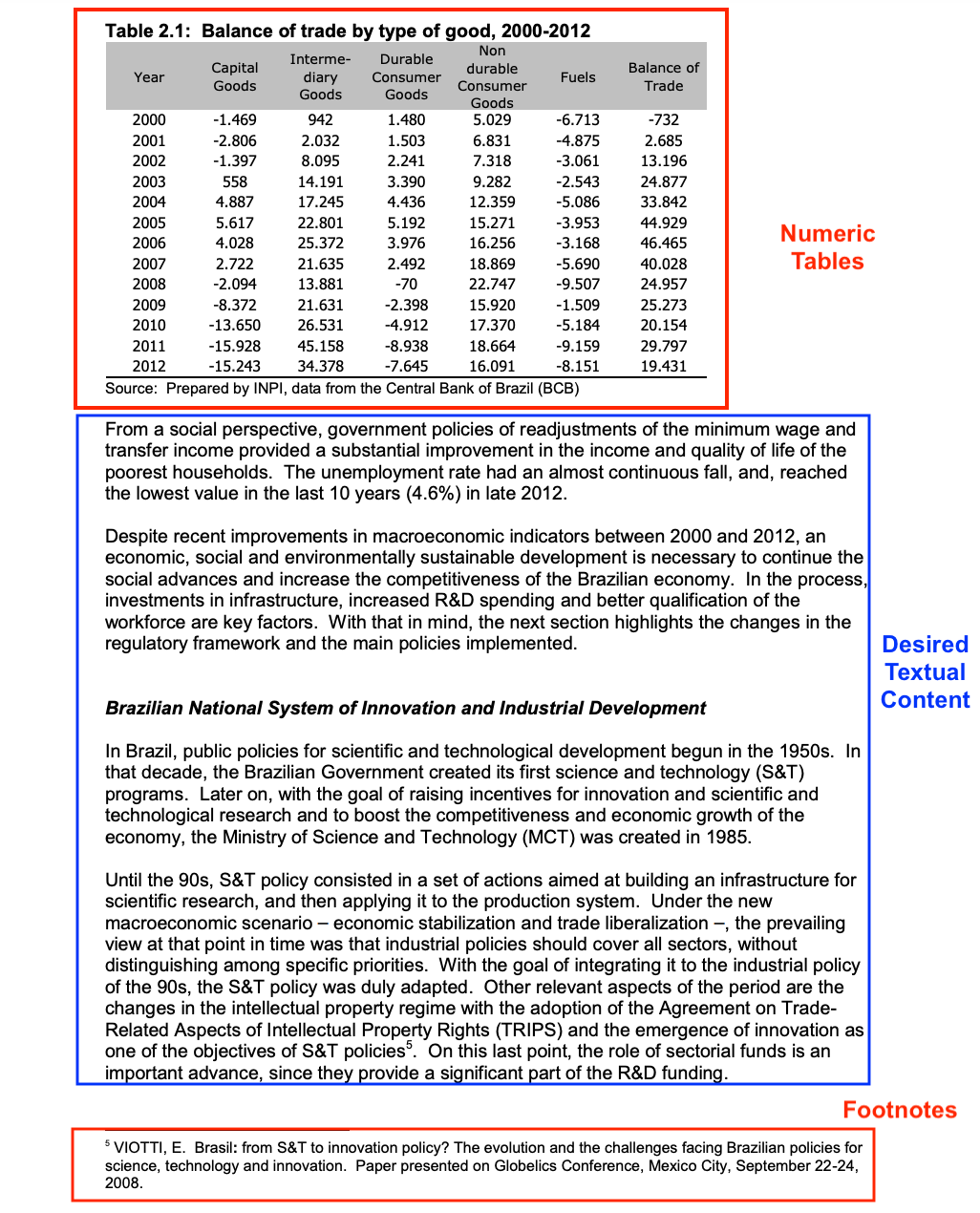
It is essential to exclude tables and graphs from the OCR process since they rely heavily on their formatting for comprehension, and the extracted plain text would be difficult to decipher. Additionally, these figures are often discussed in the main text, rendering their inclusion redundant. Similarly, footnotes should be avoided as they rarely offer relevant information and disrupt the text flow across pages.
OCR Text Extraction Issues - Example #2
Another common issue with generalized OCR approaches is the extraction errors generated by digital artifacts, discolorations, and multi-column formatting. Here is an example highlighting the problems that may arise:
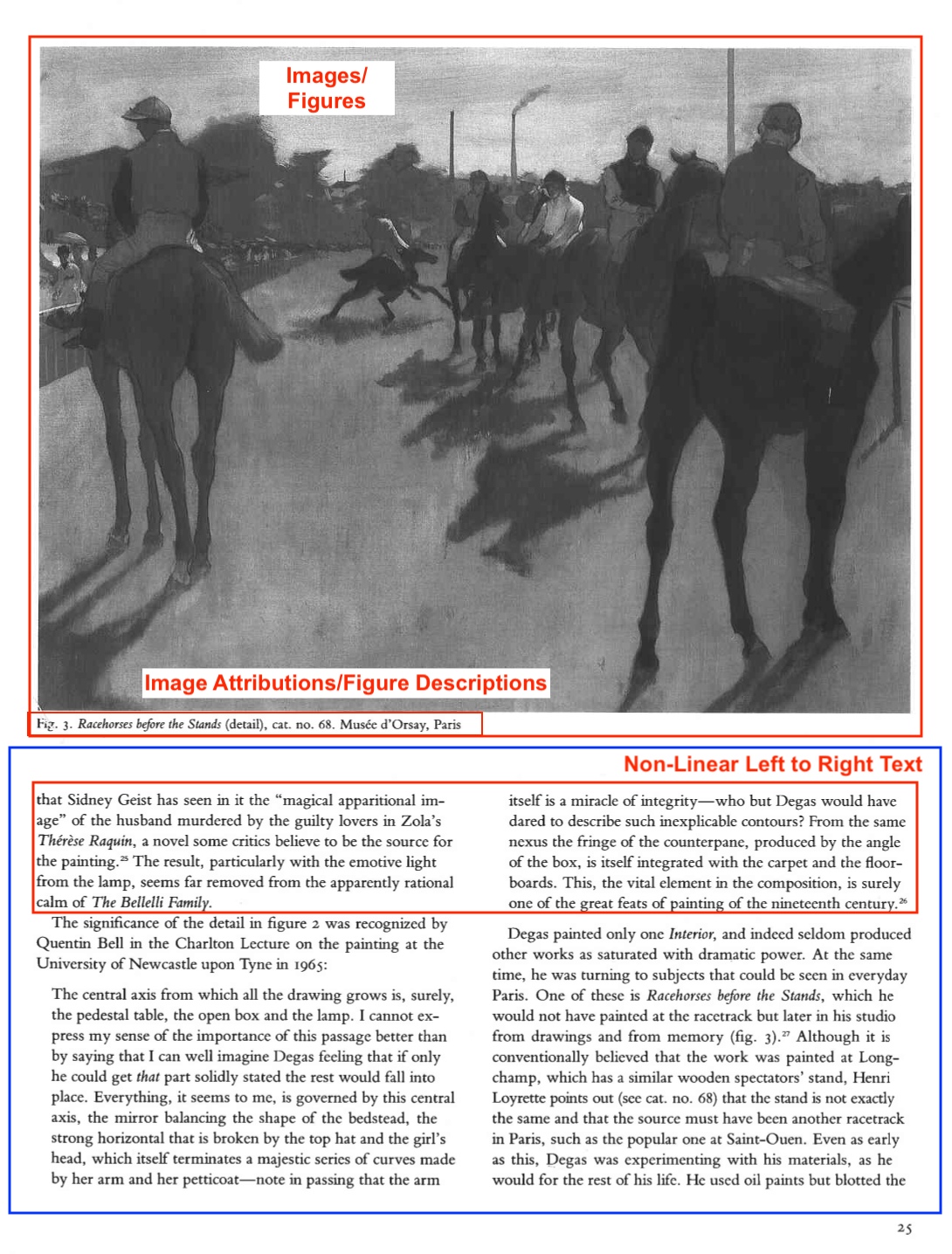
Digital Artifacts and Discolorations: OCR might inaccurately recognize characters where none exist due to imperfections like discoloration or digital artifacts present in images.
Image Attributions and Descriptions: Image attributions and descriptions can be ignored as they typically interrupt the flow of the main textual content. Moreover, their information is usually available within the main text.
Multi-column Formatting: OCR models often use a Left-Right scanning pattern, which does not account for deviations, such as multiple columns of text on a page. This limitation may lead to incorrect text extraction from such formats.
To effectively tackle text extraction challenges in academic PDFs while minimizing information loss, I knew to create a Python-based workaround. This custom solution focused on enhancing the OCR process to handle specific issues in academic documents, such as tables, graphs, footnotes, and multi-column formatting. The approach also involved optimizing the preprocessing and post-processing stages to ensure the quality and readability of the extracted text. Ultimately, this refined text was integrated with a knowledge-retrieval chatbot to provide accurate information and responses.
Capture Tools (capture_tools.py)
The capture_tools script serves as the foundation for this project. Its purpose is to enable the OCR model to accurately extract content from specific sections within PDFs and their individual pages. To achieve this, we leverage the native 'rectangular selection' screenshot feature of macOS for simplicity, flexibility, and to avoid creating complex scripts using Apple's Automator app.
Dependencies and Function: capture_screen()
The capture_screen() function captures screenshots using the tempfile and subprocess modules:
- tempfile: This module creates temporary files and directories. In our script, it generates a unique temporary .png file to store each screenshot.
- subprocess: This module spawns new processes, connects to their I/O/error channels, and retrieves their return codes. It provides a consistent interface for creating and interacting with additional processes, making it especially useful for working with command-line utilities or other executables.
Tempfile Module
Within the script, the tempfile.NamedTemporaryFile(prefix="screenshot_", suffix=".png", delete=False) method creates a temporary png file to house the screenshot. By setting delete=False, the file is retained even after being closed. This allows the screenshot to save instantly into the background, without opening or previewing it. The file path of this temporary file is stored in the screenshot_file_path variable.
Subprocess Module
The subprocess.run(["screencapture", "-i", "-s", screenshot_file_path], check=True) function executes the screencapture command with the following flags:
-i: Enables the user to capture a screenshot interactively.-s: Permits the user to select a portion of the screen to capture.
The resulting screenshot is stored in the file specified by screenshot_file_path. If the command fails (i.e., returns a non-zero exit code), the check=True parameter raises a subprocess.CalledProcessError.
In summary, the capture_screen() function creates a temporary file using the tempfile module, executes the screencapture command using the subprocess module, stores the screenshot in the temporary file, and handles any exceptions that may arise during the process.
import tempfile
import subprocess

def capture_screen():
    try:
        with tempfile.NamedTemporaryFile(prefix="screenshot_", suffix=".png", delete=False) as tmp:
            screenshot_file_path = tmp.name
            subprocess.run(["screencapture", "-i", "-s", screenshot_file_path], check=True)
        return screenshot_file_path
    except subprocess.CalledProcessError as e:
        print(f"Error capturing screen: {e}")
        return None
OCR Engine (ocr_engine.py)
The ocr_engine script builds upon the temporary screenshot file created earlier. It employs the Python Imaging Library (PIL) and the Pytesseract library to recognize text from the image file, in this case, a screenshot. It receives a screenshot file path as input and returns the recognized text as a string.
Dependencies and Function: recognize_text(screenshot_file_path, lang="eng")
The recognize_text() function takes a screenshot file path and an optional language parameter (default set to "eng" for English). It uses the Pillow (PIL) and Pytesseract libraries to recognize the text present in the screenshot.
- Pillow (PIL): A Python Imaging Library by Alex Clark and Contributors. This library is necessary for opening, manipulating, and saving image files in various formats.
- Pytesseract: A Python wrapper for Google's Tesseract-OCR Engine. This library recognizes text from the image file.
The recognize_text() function follows these steps:
- Check for an empty file path: If no file path is provided or it is empty, the function returns an empty string.
- Open and process the image file: If the screenshot file exists, the function uses
Image.open(screenshot_file_path)to open it. It then passes the opened image to the Pytesseract library to recognize the text withimage_to_string(screenshot, lang=lang, config='--psm 6'), storing the recognized text in therecognized_textvariable.lang: Parameter for specifying the language of the text to be recognized.config='--psm 6': This option sets the Tesseract OCR engine to use a specific page segmentation mode (PSM). PSM 6 assumes a single uniform block of text.
- Delete the screenshot file: After processing the image and extracting the recognized text, the function deletes the original screenshot file using
os.unlink(screenshot_file_path). - Return the recognized text: Finally, the function returns the recognized text, stripped of any unnecessary spaces.
from PIL import Image
from pytesseract import image_to_string
import os

def recognize_text(screenshot_file_path, lang="eng"):
    if not screenshot_file_path:
        return ""

    if os.path.isfile(screenshot_file_path):
        screenshot = Image.open(screenshot_file_path)
        recognized_text = image_to_string(screenshot, lang=lang, config='--psm 6')
        os.unlink(screenshot_file_path)
        return recognized_text.strip()

    return ""
Tesseract OCR Demonstration
The following demonstration showcases the powerful capabilities of the Tesseract OCR engine, combined with the temporary screenshot file creation provided by the capture_tools function. This solution effectively overcomes the limitations of simple copy-paste attempts, which would not yield accurate or meaningful results in this case.
The Text OCR feature offers impressive functionality, such as:
Processing multiple text blocks: Instead of requiring a paste action after each individual text selection, the copied text from each new block is automatically appended to the clipboard. This feature significantly streamlines the process and increases productivity.
Easy access to the text selection tool: Users can repeatedly hit the 'Enter' key to activate the text selection tool without needing to press the Text OCR button each time. This convenient feature allows users to scroll onto each consecutive block of text and simply press 'Enter' before selecting it.
This intelligent system optimizes the text recognition process, making it an invaluable tool for those who require fast and efficient OCR capabilities.
from IPython.display import HTML
import warnings

warnings.simplefilter("ignore")

HTML("""<iframe width="786" height="491" src="https://www.youtube.com/embed/A7vLKHKeFYQ" title="tesseract ocr demonstration" frameborder="0" allow="accelerometer; autoplay; clipboard-write; encrypted-media; gyroscope; picture-in-picture; web-share" allowfullscreen></iframe>""")
OCR Models and Challenges in Recognizing Scientific Symbols and Technical Expressions
While we have accomplished our initial goal outlined in the original parameters and my specific academic motivations, there still exists some avoidable difficulties when it comes to optimizing text parsing. We've seen that when provided with easily readable and logically chosen sections, traditional OCR models perform well in recognizing standard text. However, this comes at the expense of their inability to handle scientific symbols, complex mathematical notations, and technical expressions.
Copy-Pastes as:
Critical Causes of OCR Inaccuracy
Uncommon or complex symbols: Scientific symbols and technical expressions include a wide variety of unique and complex symbols not found in standard textual content. Traditional OCR models are often not trained on this diverse range of symbols, leading to inaccurate recognition.
Spatial relationships: In mathematical notations and scientific symbols, the spatial relationships between the elements (e.g., superscripts, subscripts, and fractions) are of vital importance in deriving their meaning. Conventional OCR models might fail to understand these relationships, resulting in misinterpretations.
Ambiguity and variations: Symbols and notations in scientific documents are often open to interpretation, with different representations for the same entity. OCR models trained on standard text may not cover these variations, leading to erroneous outputs.
Context-based recognition: Technical expressions and scientific symbols strongly depend on the context of use, and accurately recognizing them requires understanding the context. Typical OCR models might not be able to fathom this context, reducing their recognition accuracy.
To overcome these challenges, a different approach is necessary, such as translating the recognized symbols and expressions into a format like LaTeX. LaTeX is a powerful typesetting language designed specifically for mathematical and technical documentation. It provides an excellent means to represent complex mathematical notations and scientific symbols using human-readable syntax. This form of accurate, consistent representation is crucial for leveraging an LLM in the most optimal and valuable self-learning environment.
LaTeX Engine (latex_engine.py)
By incorporating a translation step from the OCR output to LaTeX, it becomes possible to represent complex symbols and technical expressions more accurately, enabling a more reliable conversion of such content into machine-readable format. To accomplish this, specialized OCR models can be developed that are specifically trained on scientific symbols and technical expressions, considering their unique characteristics, variations, and contextual relationships. This approach can significantly improve the recognition and representation of complex notations, ensuring a more accurate and effective conversion process.
Dependencies and Function: recognize_latex(screenshot_file_path)
LatexOCR and pix2tex
The LaTeX function is primarily driven through a modified LatexOCR model from the pix2tex - LaTeX OCR package. This learning-based system is specifically designed to convert images of mathematical expressions into LaTeX code.
The pix2tex project utilizes a powerful model architecture combining a Vision Transformer (ViT) encoder with a ResNet backbone and a Transformer decoder. The ViT encoder processes an image as a sequence of patches and applies transformer mechanisms, delivering excellent performance in image-related tasks. The ResNet backbone (Residual Network) within the encoder, a widely-used convolutional neural network, extracts essential image features. Meanwhile, the Transformer decoder excels in sequence-to-sequence tasks and is primarily used in natural language processing.
In the pix2tex project:
- Preprocessing: The input image is divided into fixed-size patches and linearly embedded as input tokens for the ViT encoder.
- ViT Encoder with ResNet Backbone: The ResNet backbone extracts features from the image patches passed to the ViT encoder. The Vision Transformer processes both local and global information from the extracted features for improved context and spatial relationships.
- Transformer Decoder: The output from the ViT encoder is passed to the Transformer decoder, which generates accurate LaTeX sequences based on the encoded visual representation.
This cohesive architecture and supervised learning system enable an OCR model to specialize as a predictive model capable of providing accurate conversion of images of mathematical equations and scientific symbols into their LaTeX representations.
In terms of modifications to fit personal use, lines 136-139 of 'cli.py' were deleted:
try:
    clipboard.copy(pred)
except:
    pass
This removes the part of the code that copies the predicted LaTeX code (pred) to the system clipboard. As a result, after running this modified code, the predicted LaTeX code will not be automatically copied to the clipboard but instead needs to be manually copied to use the results elsewhere. This ensures that only the final result outputted by the model is copied to the clipboard, avoiding repetitive errors involving the copying of intermediate, inaccurate results that don't reflect the true output.
Other Dependencies and Functions
- Import libraries: Essential libraries for the LaTeX model include
PILfor handling images, andos, andpyperclip, which manage file paths and clipboard content, respectively. - Create a LatexOCR instance: The
LatexOCRclass is instantiated to handle the conversion of images into LaTeX code. - Define the input checking and processing function: The function
recognize_latexaccepts ascreenshot_file_pathas an argument and processes the image file located at that path. Image preprocessing includes resizing and padding techniques as defined in theLatexOCR'sminmax_sizefunction, which resizes and pads an input image to ensure that it fits within specified maximum and minimum dimensions while preserving aspect ratios. If no valid file path is provided, an empty string is returned. - Save and restore clipboard content: To avoid overwriting any content currently in the clipboard, the original content is saved and restored after processing the image.
- Open and process the image file: The temporary image file is opened and passed to the
latex_ocr_modelfor recognition and conversion to LaTeX code. After processing, the function checks if any LaTeX code has been recognized. If so, the recognized code is returned; otherwise, an empty string is returned.
from PIL import Image
from pix2tex.cli import LatexOCR
import os
import pyperclip

latex_ocr_model = LatexOCR()


def recognize_latex(screenshot_file_path):
    if not screenshot_file_path:
        return ""

    # Save the current clipboard content
    original_clipboard_content = pyperclip.paste()

    if os.path.isfile(screenshot_file_path):
        screenshot = Image.open(screenshot_file_path)
        recognized_latex = latex_ocr_model(screenshot, resize=True)

        # Restore the original clipboard content
        pyperclip.copy(original_clipboard_content)

        if recognized_latex:
            return recognized_latex

    return ""
LaTeX OCR Model Demonstration
In this YouTube demonstration, I will showcase how the LaTeX OCR predictive model accurately translates mathematical expressions into flexible LaTeX representations. This model significantly improves the copying and pasting process of these expressions, as shown in the video.
Initially, we will demonstrate the limitations and issues encountered when attempting to directly copy-paste a mathematical expression. Afterward, we will illustrate how the recognize_latex function provides a highly accurate output for the selected screenshot by converting the expressions to LaTeX format.
To further emphasize the effectiveness of the LaTeX OCR model, we will also use a second, more complicated equation. This example will showcase the model's ability to maintain a linear format and seamlessly append the translated content to the clipboard.
HTML("""<iframe width="786" height="491" src="https://www.youtube.com/embed/2dQBsZzLu_k?si=pNJTGs_50YgQSwzy" title="tesseract ocr demonstration" frameborder="0" allow="accelerometer; autoplay; clipboard-write; encrypted-media; gyroscope; picture-in-picture; web-share" allowfullscreen></iframe>""")
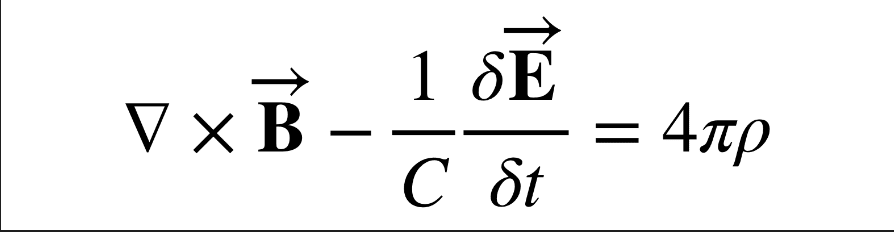
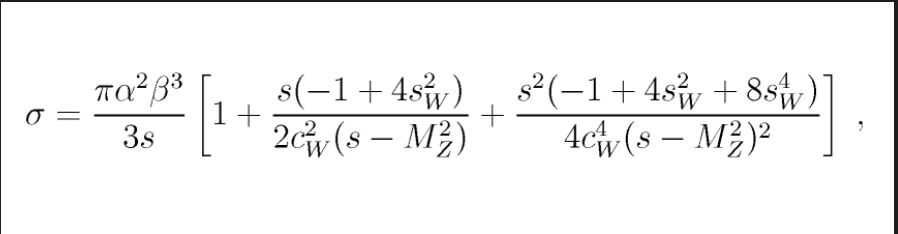
The original equation images:
Model output of equation's LaTeX representations:
$$
\nabla\times\vec{\mathrm{B}}-\frac{1}{C}\frac{\delta\vec{\mathrm{E}}}{\delta t}=4\pi\rho
$$
$$
\sigma=\frac{\pi\alpha^{2}\beta^{3}}{3s}\left[1+\frac{s(-1+4s_{W}^{2})}{2c_{W}^{2}(s-M_{Z}^{2})}+\frac{s^{2}(-1+4s_{W}^{2}+8s_{W}^{4})}{4c_{W}^{4}(s-M_{Z}^{2})^{2}}\right]
$$
These LaTeX expressions transformed correctly back to their 'in-line math notation': $$ \nabla\times\vec{\mathrm{B}}-\frac{1}{C}\frac{\delta\vec{\mathrm{E}}}{\delta t}=4\pi\rho $$
$$ \sigma=\frac{\pi\alpha^{2}\beta^{3}}{3s}\left[1+\frac{s(-1+4s_{W}^{2})}{2c_{W}^{2}(s-M_{Z}^{2})}+\frac{s^{2}(-1+4s_{W}^{2}+8s_{W}^{4})}{4c_{W}^{4}(s-M_{Z}^{2})^{2}}\right] $$Main App (main_app.py)
This final main script brings together the OCR Engine, LaTeX Engine, and Capture Tools into a single tkinter GUI application. It allows users to capture screenshots and freely chose between recognizing text or LaTeX code,before adding the recognized content to the system clipboard in a linear, formatted manner.
Dependencies
- tkinter: The standard Python library for creating lightweight and simple GUIs.
- ocr_engine (recognize_text): The function from
ocr_engine.pyto recognize text in images. - latex_engine (recognize_latex): The function from
latex_engine.pyto recognize LaTeX code in images. - capture_tools (capture_screen): The function from
capture_tools.pyto capture screenshots.
Class: GUI
This class creates the application interface and functionality.
Initialization: Sets up the main window, its dimensions, and title. It also creates buttons and labels for the interface.
copy_content: The function receives recognized content, current clipboard content, and a flag indicating if the content is LaTeX code. It appends the recognized content to the clipboard. If the content is LaTeX, it wraps it with proper notational dollar signs.
capture_and_copy_text: Captures the screen and recognizes any text. It then appends the recognized text to the clipboard.
capture_and_copy_latex: Captures the screen and recognizes any LaTeX code. It then appends the recognized LaTeX code to the clipboard.
reset_clipboard: Clears the clipboard content.
run: Starts the main application loop, which keeps the window open.
Function: main
This function initializes the GUI object and starts the main loop.
Entry Point
The standard if __name__ == "__main__": is used as the entry point of the script. If the script is run as the main program, it calls the main() function to initiate the application.
#main_app.py

import tkinter as tk
from tkinter import ttk
import pyperclip

from ocr_engine import recognize_text
from latex_engine import recognize_latex
from capture_tools import capture_screen

class GUI:

    def __init__(self):
        self.root = tk.Tk()
        self.root.title("Screen Capture OCR")
        self.root.geometry("450x250")

        main_frame = ttk.Frame(self.root)
        main_frame.pack(pady=10)

        ttk.Label(main_frame, text="Choose recognition mode:").grid(row=0, column=0, sticky="W", padx=(20, 0), columnspan=2)

        ttk.Button(main_frame, text="Text OCR", command=self.capture_and_copy_text).grid(row=1, column=0, padx=(20, 0), pady=5)
        ttk.Button(main_frame, text="LaTeX OCR", command=self.capture_and_copy_latex).grid(row=1, column=1, padx=(10, 0), pady=5)


        ttk.Button(main_frame, text="Clear Clipboard", command=self.reset_clipboard).grid(row=3, column=0, padx=(20, 0), pady=5, columnspan=2)

        self.status_text = tk.StringVar()
        ttk.Label(main_frame, textvariable=self.status_text).grid(row=4, column=0, sticky="W", padx=(20, 0), pady=5, columnspan=2)

        self.root.bind("<Return>", lambda event: self.capture_and_copy_text())


    def copy_content(self, content, current_clipboard, is_latex=False):
        if is_latex:
            content = f"$$\n{content}\n$$"

        if current_clipboard:
            new_clipboard = current_clipboard + "\n\n" + content
        else:
            new_clipboard = content

        pyperclip.copy(new_clipboard)

    def capture_and_copy_text(self):
        screenshot_file_path = capture_screen()

        if screenshot_file_path:
            recognized_content = recognize_text(screenshot_file_path)

            if recognized_content:
                current_clipboard = pyperclip.paste()
                self.copy_content(recognized_content, current_clipboard, is_latex=False)
                self.status_text.set("Text recognized and appended to clipboard!")

    def capture_and_copy_latex(self):
        screenshot_file_path = capture_screen()

        if screenshot_file_path:
            recognized_content = recognize_latex(screenshot_file_path)

            if recognized_content:
                current_clipboard = pyperclip.paste()
                self.copy_content(recognized_content, current_clipboard, is_latex=True)
                self.status_text.set("LaTeX recognized and appended to clipboard!")

    def reset_clipboard(self):
        pyperclip.copy('')
        self.status_text.set("Clipboard has been reset.")

    def run(self):
        self.root.mainloop()

def main():
    app = GUI()
    app.run()

if __name__ == "__main__":
    main()
Main App Demo
Once again I've created a video to demonstrate the culmination of my total LaTeX and Text OCR project. As a whole, it displays the individual abilities of each recognition mode, the clipboard appending functionality, the ability to simply use keybinds to speed up scanning, and the ease that comes with needing to interchange recognition modes throughout a text.
HTML("""<iframe width="786" height="491" src="https://www.youtube.com/embed/1dBCizYflqw?si=Xms4aATEKkA1lVcM" title="tesseract ocr demonstration" frameborder="0" allow="accelerometer; autoplay; clipboard-write; encrypted-media; gyroscope; picture-in-picture; web-share" allowfullscreen></iframe>""")
Below is the text extracted in the demo, showing full integration between accurate LaTeX formatting and cleanly recognized text:
The rate of growth in productivity for each firm will be estimated by the following method.
Assume a production function homogeneous of the first degree in labor and capital and the case of neutral change in technology over time. Furthermore, assume this function to be of the Cobb-Douglas form. Thus we have
$$ X_{t}=P_{t}\,L_{t}^{*}K_{t}^{1-t} $$where X,, P,, L,, and K, represent value added (or output), produc- tivity, labor, and capital, respectively, in time, t. Therefore,
$$ P_{t}={\frac{X_{t}}{L_{t}^{a}K_{t}^{1-a}}} $$The change in productivity between two periods can be obtained by
$$ {\frac{P_{t}}{P_{i+1}}}={\frac{X_{t}\ L_{i+1}^{a}\ K_{i}^{1a}}{X_{t+1}\ L_{t}^{a}\ K_{i}^{1a}}} $$